

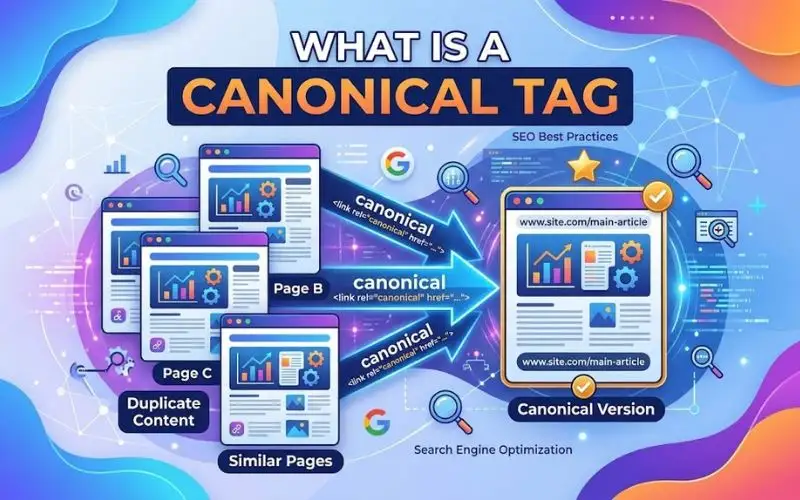
Picture a bakery with one famous chocolate cake. Now imagine that cake sits on five different shelves. Each shelf has its own price tag. Customers get confused, and the owner cannot tell which shelf sells the most.
Search engines face the same confusion with duplicate URLs. Your website may show one page on several addresses. Google sees each address as a separate page. That split can quietly weaken your rankings.
A canonical tag solves this problem. It tells search engines which URL is the main version. At 4P Wisdom, we find canonical issues in almost every technical audit. Small mistakes here can drain traffic for months.
This guide explains what a canonical tag is and how it works. You will learn when to use it and how to set it up. You will also see the mistakes that cost businesses traffic every month. Let’s start with the basics.
What Is a Canonical Tag?
A canonical tag is a short line of HTML code. It sits inside the head section of a webpage. It tells search engines the preferred URL for that content. Developers call it rel=”canonical”.
The word canonical simply means official or authoritative. So the tag names the official version of a page. Every other version becomes a copy that supports the main one.
Here is what the tag looks like in real code:
<link rel=”canonical” href=”https://wisecarcare.com/financing-warranty/” />
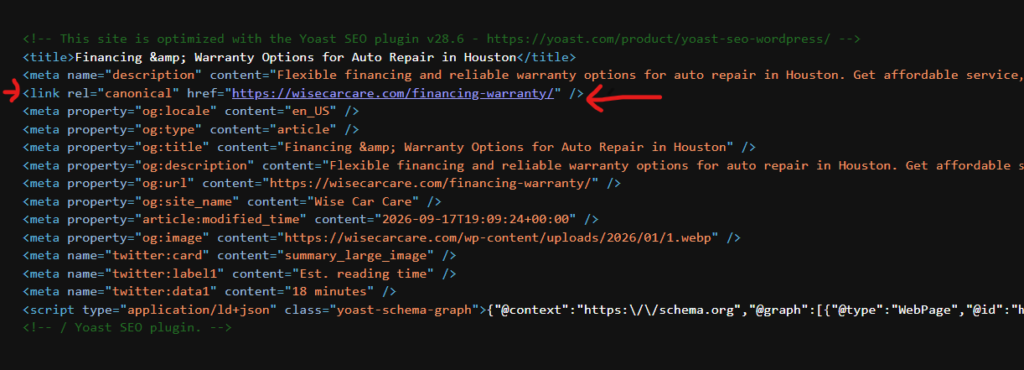
This line carries one clear message. It says, “Treat this address as the master copy.” Google, Bing, and Yandex all read this signal while crawling and indexing pages.
The process of choosing the master URL is called canonicalization. Moz explains it well in its canonicalization guide. Google also documents it in its guide to consolidating duplicate URLs.
The idea is older than many people think. In 2009, Google, Yahoo, and Microsoft announced support for the tag together. It was a rare moment when rival search engines agreed on one standard. Since then, it has become a core tool in technical SEO.
What Does Canonical Mean in SEO?
In SEO, canonical means the version of a page you want indexed and ranked. All other versions are treated as duplicates. Search engines group those duplicates under one main URL. Then they pass ranking signals to that URL.
Think of a folder system on your computer. The canonical page is the real file. The duplicates are shortcuts that point back to it. You only need to maintain one real file.
This grouping happens inside Google’s index. Google forms a cluster of similar pages. Then it picks one page as the representative. Your canonical tag helps Google make that pick.
Where Does the Canonical Tag Go?
The tag must live in the head section of the HTML. It should not appear in the body. Google may ignore any tag placed in the wrong spot. This is a very common bug in themes and plugins.
You can also send the tag through an HTTP header. This method suits PDFs and other files without HTML. We explain it in detail later in this guide.
Is a Canonical Tag a Command or a Hint?
It is a hint. Google calls it a strong signal, but it is not a strict rule. Google can override your choice when other signals disagree with it.
This detail matters a lot. Many site owners add the tag and assume the job is done. In reality, the tag works best when your whole site supports it. Redirects, links, and sitemaps must all tell the same story.
Why Canonical Tags Matter for SEO
Duplicate content is not a penalty by itself. Google has said this clearly for years. But duplicate URLs still create real business problems. These problems are quiet, so many owners never notice them.
Let’s look at each risk in detail.
Link Equity Gets Split
Backlinks are votes of trust. Suppose three websites link to three versions of one page. Each version earns only a slice of that trust. No single page gets the full benefit.
This hurts more than most people expect. Imagine you earned thirty quality backlinks to a service page. If they spread across three URLs, each URL holds ten. Ten links rarely beat a competitor’s thirty.
A canonical tag pulls those signals together. Google can then credit one strong URL instead of three weak ones. This consolidation often lifts rankings without any new link building. It is one of the cheapest wins in SEO.
Crawl Budget Gets Wasted
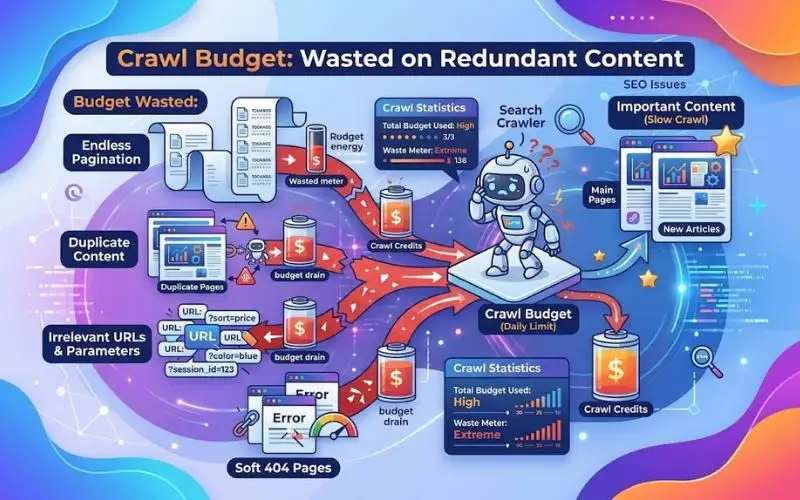
Googlebot has limited time for each website. It cannot crawl every page every day. Duplicate URLs eat into that limited attention. Your new blog posts then wait longer to be discovered.
We explain this in our guide to managing crawl budget for large sites. Large ecommerce stores and news publishers feel this problem the most. A store with filters can create thousands of URLs from a few hundred products.
Clean canonical signals help bots reach your best pages faster. They spend less time on copies and more time on content that earns money.
The Wrong Page May Rank
Without guidance, Google picks a version on its own. It might choose a URL with tracking codes. It might choose a printer-friendly copy or an old mobile page.
Those pages look messy in search results. They also convert poorly. A user who lands on a stripped-down copy may leave quickly. A canonical tag keeps your cleanest and most useful page in front of searchers.
Analytics Become Confusing
When traffic spreads across many URLs, reports get noisy. You cannot see which page truly performs well. Your team may make decisions based on split numbers.
Clean canonicals make your data easier to trust. You see one page with one traffic total. That clarity helps you plan content, budgets, and campaigns with confidence.
Content Theft Becomes Less Harmful
Scrapers copy content often. They steal blog posts and publish them on spam sites. A self-referencing canonical on your page can travel with the copied code. Sometimes that helps Google identify the original source.
It is not a perfect shield. But it adds one more layer of protection for your work. Combined with strong authorship signals, it supports your position as the true publisher.
How Does Google Choose a Canonical URL?
Google does not rely on one tag alone. It weighs many signals together. Understanding these signals helps you avoid conflicts. It also explains why some canonical tags get ignored.
According to Google’s documentation, these signals matter most:
- Redirects, especially permanent 301 redirects.
- The rel=”canonical” tag.
- URLs listed in your XML sitemap.
- Internal links across your site.
- HTTPS over HTTP.
Each signal carries a different strength. A redirect is very strong. A sitemap entry is weaker. Together they form a clear picture of your preferred URL.
Why Consistency Beats Everything
Think of these signals as five witnesses in a courtroom. If all five tell the same story, the judge believes them. If two witnesses contradict the others, doubt appears.
Google behaves the same way. When every signal points to one URL, Google follows your choice. When signals clash, Google trusts its own judgment instead.
What Happens When Signals Conflict?
Imagine your canonical tag points to page A. But your sitemap lists page B. Your internal links also point to page B. Google may decide page B is your real preference.
This is why audits matter. A single wrong signal can undo the work of the tag. Consistency is the secret to reliable canonicalization.
The User Declared vs Google Selected Canonical
Google Search Console shows two important terms. The user-declared canonical is the one you set. The Google-selected canonical is the one Google chose after weighing all signals.
When both match, you are safe. When they differ, you have a conflict to solve. We show you how to check this later in the guide.
Canonical Tag vs Other Duplicate Content Solutions
Canonical tags are one tool among several. Each tool solves a slightly different problem. Choosing the right one saves you time and prevents new issues.
Canonical Tag vs 301 Redirect
A 301 redirect sends users and bots to a new URL permanently. The old page stops showing. A canonical tag keeps both pages live. It only suggests which one should rank.
Use a redirect when the old page has no reason to exist. For example, you may have merged two blog posts into one. Use a canonical when both pages must stay open for users. Sorting and filtering pages are good examples.
For more detail, read our guide on the difference between 301 and 302 redirects. It explains how each redirect type passes ranking signals.
Canonical Tag vs Noindex Tag
A noindex tag tells Google to keep a page out of search results. A canonical tag tells Google which page to prefer. The goals are very different.
No index removes a page. Canonical merges pages. Noindex also stops the page from passing strong signals in many cases. Never use both on the same page, because the messages clash.
Canonical Tag vs Robots.txt
The robots.txt file tells bots which areas they may crawl. It does not consolidate duplicates. In fact, blocking a page stops Google from reading its canonical tag.
Keep duplicate pages crawlable if you want Google to see the tag. Use robots.txt for private areas, internal search pages, or low-value sections instead.
Canonical Tag vs Parameter Handling
Google once offered a URL Parameters tool inside Search Console. It has since been retired. Site owners now rely on canonical tags, clean internal links, and smart site structure.
This change makes canonical tags even more important for filtered and tracked URLs. They are now one of your main tools for controlling parameter chaos.
When Should You Use a Canonical Tag?
Now let’s look at real situations. These are the cases where canonical tags earn their place. Each one appears often in client audits.
URL Parameters and Filters
Online stores create many URLs through filters. A URL like example.com/shoes/?color=red shows a slice of the same products. So does example.com/shoes/?sort=price. Every combination creates another address.
A store with ten filters can produce thousands of near copies. Google may crawl them all and index a random few. Point these variations to the main category page. That keeps your ranking power in one place.
Only do this if the filtered page adds no unique search demand. If people search for “red running shoes” often, that page may deserve its own canonical and unique content.
Tracking Parameters
Marketing teams add UTM parameters to links. These tags track where visitors come from. They also create new URLs with identical content.
Without canonicals, these tracking URLs can compete with your clean page. Some even get indexed by mistake. A self-referencing canonical on the clean URL solves this neatly. The tracking still works, and your ranking stays protected.
HTTP, HTTPS, and WWW Versions
Your site may load on both secure and insecure addresses. It may also load with and without www. That can create four versions of every page.
Pick one preferred version. Redirect the others to it with 301 redirects. Then add canonical tags that match your choice. Redirects give the strongest signal, and canonicals back them up.
Trailing Slash Variations
The addresses example.com/page and example.com/page/ can count as different URLs. Servers may serve the same content on both. Search engines may treat them as separate pages.
Pick one style and use it everywhere. Your canonical tags, internal links, and sitemap should follow that style. Consistency removes the guesswork.
Syndicated Content
Sometimes a partner republishes your article on their site. Maybe you contributed a guest post or joined a content network. Ask them to add a cross-domain canonical pointing to your original.
This tells Google who wrote the content first. Google notes that cross-domain canonicals are a hint too. But they work well when the content is truly the same. Always get this agreement in writing.
Print and Mobile Versions
Older sites sometimes keep separate print pages or mobile URLs. A canonical tag connects these to the main desktop version. Modern responsive design has reduced this need. Still, many legacy sites carry these extra URLs.
If you run an old m dot site, review its tags carefully. Mistakes here can break mobile rankings.
Product Variations
A shirt in five colors might have five near-identical pages. If the content is truly the same, point them to one main product page. This keeps reviews and links in one place.
If each color has unique content and real search demand, keep separate self-referencing canonicals. Let the data guide your choice.
Content in Multiple Categories
A blog post might appear under two category paths. For example, /seo/canonical-tag/ and /technical/canonical-tag/. Both show the same article.
Choose one path as the master. Canonicalize the other to it. Better still, change your CMS settings so the second path never exists.
Campaign and Landing Page Copies
Marketers often clone landing pages for ads. These copies can look identical. Canonical tags stop them from competing with your main page in organic search.
Alternatively, add a noindex tag to paid-only pages. Just remember not to combine the two tags on one page.
Canonical Tag Best Practices for SEO
This is the part that protects your rankings. Follow these rules on every page you manage. Each one is based on Google’s documentation and real audit experience.
Always Use Absolute URLs
Write the full address, including https and the domain. Relative paths can cause errors when pages are copied or crawled in unusual ways. A relative path may resolve to the wrong domain.
Good example:
<link rel=”canonical” href=”https://www.example.com/shoes/” />
Risky example:
<link rel=”canonical” href=”/shoes/” />
Google says it can handle relative paths. But absolute URLs remove any doubt. They also protect you if someone scrapes your code.
Add Self-Referencing Canonicals
Every indexable page should point to itself. This sounds strange at first. But it is one of the smartest habits in technical SEO.
If someone adds a tracking code to your URL, the canonical still points to the clean version. It acts like a safety net for every page. You do not need to predict every duplicate. The tag handles them automatically.
Place the Tag in the Head Section
Search engines only trust canonicals inside the head. If a plugin drops the tag into the body, Google may skip it. Always inspect the rendered code, not just your template file.
Also watch for code that closes the head too early. A stray element or script can push your tag into the body. This bug is subtle, and it hides well.
Use One Canonical Per Page
Two canonical tags with different URLs create a conflict. Google will likely ignore both. This often happens when a theme and an SEO plugin both add tags.
Check your page source and search for the word canonical. You should find exactly one match. If you find two, remove one at the source.
Point to a Live, Indexable Page
Your canonical target must return a 200 status code. It should not redirect. It should not show a 404 error. It should not carry a noindex tag.
If the target is broken, Google will disregard your hint and choose for itself. A crawl can find these problems in minutes. Fix them before they spread.
Avoid Canonical Chains
A chain happens when page A points to page B, and page B points to page C. Google may not follow long chains. It may pick the wrong final page.
Point every duplicate straight to the final version. Keep the path short and clear. A direct route is always more reliable.
Keep Sitemaps Clean
Your XML sitemap should list only canonical URLs. Do not include duplicates, redirected pages, or noindex pages. A tidy sitemap reinforces your canonical choices.
Many CMS plugins build sitemaps automatically. Still, review them now and then. Plugins sometimes include parameter URLs after settings change.
Link Internally to the Canonical Version
Your internal links are strong signals. If your menu links to a parameter URL, Google may prefer that one. Always link to the clean, canonical address. Do this in menus, footers, blog posts, and buttons.
A strong internal linking strategy supports your canonical setup every single day. It also helps users move through your site with ease. Good links guide both people and bots.
Never Combine Canonical and Noindex
These two tags send opposite messages. Noindex says remove this page. Canonical says merge signals into that page. When both appear, Google gets confused.
Choose one goal per page. Then use the matching tag. Clear instructions produce predictable results.
Do Not Block Pages in Robots.txt
Googlebot must crawl a page to read its canonical tag. If robots.txt blocks the page, the tag stays invisible. Google may still index the blocked URL from links alone.
Keep both the duplicate and the canonical page open to crawlers. Let Google see the full picture.
Canonicalize Only Very Similar Content
Canonical tags work when pages are near duplicates. Do not point unrelated pages to your homepage. Google will see it as a mistake and ignore it.
A quick test helps. Ask yourself if a user would feel the two pages are the same. If yes, canonicalization is fine. If not, keep them separate.
Handle Pagination Carefully
Page two of a blog archive is not a copy of page one. It lists different items. So do not canonicalize every page to the first one. That would hide the content on later pages.
Give each paginated page its own self-referencing canonical. Also make sure the items inside are reachable through normal crawlable links. Google no longer uses the old prev and next tags.
Pair Canonicals With Hreflang
Multilingual sites need extra care. Each language version should canonicalize to itself. Then hreflang tags connect the versions. Together they show Google which page fits which audience.
Never point a French page to the English page. That tells Google the French page is only a copy. It can vanish from French search results.
Use Canonical HTTP Headers for Files
PDFs, Word documents, and images have no head section. You can send the canonical through an HTTP Link header instead. Google supports this method well.
This helps when you publish downloadable guides that also exist as web pages. Ask your developer to set it at the server level. Then test the header with a crawler.
Keep Canonicals Server-Side When Possible
Google can read canonical tags added by JavaScript. But the process can be slower and less reliable. Server-rendered tags are safer and faster to process.
If you use a JavaScript framework, test the rendered HTML. The URL Inspection feature shows what Google actually sees. Do not trust your browser alone.
Review Canonicals After Every Major Change
Site migrations, redesigns, and CMS updates can break canonical logic. Staging domains sometimes leak into live code. A plugin update can reset your settings overnight.
Audit your tags after any big release. A ten-minute check can save months of lost traffic.
Canonical Tags for Local SEO
Local businesses face special risks. Many create near-identical service pages for each city. Those pages can look like duplicates to Google. That can hurt visibility in the map pack and organic results.
Imagine a plumbing company with pages for Lahore, Karachi, and Islamabad. If the text is the same except for the city name, trouble follows. Google may fold them into one page. Two of your cities then lose their voice.
Give Each Location Page Unique Value
Write distinct content for each location. Add local landmarks, neighborhood names, and service area details. Include team members, customer reviews, photos, and local case studies.
These details prove real presence. They also support the EEAT ideas of experience and trust. Once each page has unique value, give it a self-referencing canonical. That tells Google every city page deserves its own ranking.
Never Canonicalize All City Pages to One Page
This mistake erases local visibility. If every city page points to one master page, Google drops the others. You lose rankings in every area except one.
Only canonicalize when two pages truly target the same location and intent. For example, two pages for the same city with different URLs.
Watch Your Google Business Profile Link
Your Google Business Profile links to a page on your website. Point it to a clean canonical landing page. Avoid long tracking URLs where possible. Messy links can cause reporting confusion.
If you must track clicks, keep the canonical tag on the clean version. Our team explains how to strengthen this connection in our Google Business Profile optimization service. A tidy profile and a tidy site work together.
Multi-Location Businesses
Franchises often use one template across many branches. Each branch page needs unique NAP details. NAP means name, address, and phone number. Consistent NAP data builds trust with Google and customers.
Add embedded maps and local business schema markup too. These signals help Google treat each page as a separate entity. They also support your rankings in local searches.
Service Area Pages and Duplicate Risk
Service area pages tempt marketers to copy and paste. Resist that urge. Google’s helpful content systems reward pages made for people. Thin copies rarely win.
Use real photos of completed jobs in each area. Mention local regulations, weather, or common customer needs. This makes every page truly useful.
How to Add a Canonical Tag
The method depends on your platform. Here are the most common setups. Pick the one that matches your site.
In WordPress
Plugins like Yoast SEO and Rank Math add self-referencing canonicals by default. You can override the URL in each page’s advanced settings. This is handy for syndicated posts or merged content.
Only override when you have a clear reason. After any change, view the source and confirm only one tag exists. Some themes add a second tag, and that creates a conflict.
In Shopify
Shopify adds canonical tags to themes automatically. A product shown inside a collection points back to its main product URL. This solves many duplicate problems out of the box.
Still, check custom themes. Some developers remove or change the default code. Test a few product and collection pages after any theme update.
In Wix and Squarespace
Both platforms add canonical tags automatically. They also allow limited manual control. Review your settings if you run duplicate pages on purpose.
If you need advanced control, use the built-in SEO settings or custom code areas. Always test the live page afterward.
In Next.js and Custom Sites
Developers can set canonicals in the metadata configuration. The official Next.js canonical guide shows how to do this cleanly. Always confirm the tag appears in the rendered output.
Dynamic routes need special attention. A blog template should build the canonical from the real slug. Otherwise, every post may share the same tag by mistake.
In HTTP Headers
Servers can send a Link header with rel=”canonical”. Apache and Nginx both support this. It is the best option for PDFs and other non-HTML files.
Test the header using a browser developer tool or a crawler. Make sure it points to a live, indexable URL.
Manual HTML Method
For a static site, paste the tag into the head section of each page. Use the full absolute URL. Save, upload, and test.
This method takes time on large sites. Consider using templates so each page builds its own tag automatically.
How to Check Canonical Tags
Do not guess. Verify your tags with real tools. Here is a simple process you can follow.
- Right-click a page and choose View Source. Search for the word canonical.
- Open the URL Inspection tool in Google Search Console. Compare the user-declared and Google-selected canonicals.
- Run a crawl with Screaming Frog, Ahrefs Site Audit, or Semrush. These tools flag missing, broken, and conflicting tags.
- Open the Pages report in Search Console. Look for statuses such as “Duplicate without user selected canonical.”
- Compare your sitemap, internal links, and redirects with your canonical targets.
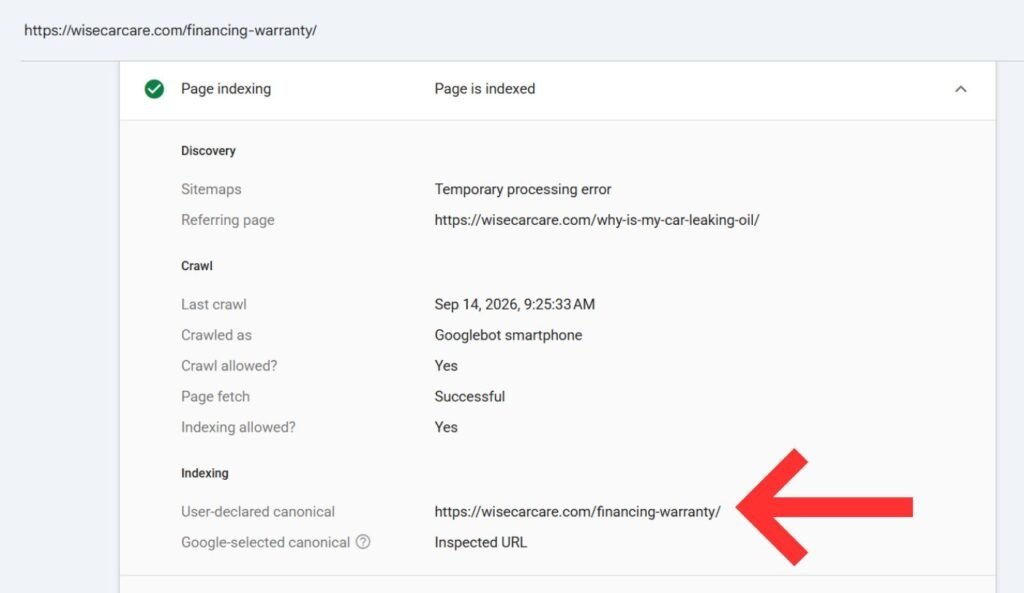
If Google chooses a different URL from yours, investigate. Check for redirects, weak internal links, or sitemap conflicts. Also confirm the two pages are similar enough.
Understanding Search Console Statuses
Search Console uses several duplicate-related labels. “Duplicate without user selected canonical” means you set no tag. Google picked one on its own. Add a tag to take control.
“Duplicate, Google chose different canonical than user” means your tag was overruled. Review your signals carefully. Look at redirects, links, and page similarity.
“Alternate page with proper canonical tag” is a healthy status. It means Google respects your choice. Most of your duplicate URLs should show this label.
Using a Crawler for Bulk Checks
Manual checks work for a few pages. Large sites need automation. A crawler reads every URL and lists its canonical target. You can then filter for errors in seconds.
Look for pages where the canonical differs from the URL. Then decide if each difference is intentional. Export the list and share it with your developer.
Common Canonical Tag Mistakes
Canonical tags look simple, but small mistakes can send confusing signals to search engines. Even experienced SEO professionals can overlook them, especially on large websites, during migrations, or after redesigns. A poorly implemented canonical tag can prevent the right page from being indexed, waste crawl resources, or cause Google to ignore your preferred URL.
Here are some of the most common canonical tag mistakes to watch for.
Pointing to a Broken URL
One of the biggest canonical mistakes is pointing to a URL that no longer exists. If your canonical URL returns a 404 or 410 status code, it cannot serve as a useful consolidation target.
For example, if:
is listed as the canonical but the page has been deleted, Google has no valid page to consolidate signals toward. The canonical signal may simply be ignored.
Run regular crawls of your website and check that every canonical URL returns a successful, indexable response. If a canonical points to a deleted page, replace it with the correct live URL or update the page’s canonical to itself when appropriate.
Pointing to a Redirected URL
Your canonical should generally point directly to the final URL rather than to a URL that redirects somewhere else.
For example:
redirects to:
It is better to make the second URL the canonical target rather than using the redirected URL.
Redirect chains can create unnecessary crawl steps and send mixed signals about which URL you actually want search engines to treat as the preferred version. During an SEO audit, check canonical URLs for 301 and 302 redirects and update them to the final destination wherever possible.
Canonicalizing to a Noindex Page
Using a canonical tag that points to a page with a noindex directive can create conflicting signals.
For example, Page A tells Google:
“Consolidate my signals with Page B.”
But Page B tells Google:
“Do not include me in search results.”
These instructions do not work well together because you are asking search engines to consolidate signals toward a page that you have deliberately excluded from indexing.
Your canonical target should normally be a page that is accessible, indexable, and eligible to appear in search results. Review the target’s robots directives, HTTP status, and accessibility before choosing it as the canonical URL.
Leaving Staging Domains in the Code
Website redesigns and migrations can introduce another serious problem: accidentally leaving staging or development URLs in canonical tags.
For example, your live page might be:
but the canonical could still point to:
This tells search engines that the staging version is the preferred URL. If this happens across hundreds or thousands of pages, it can create significant indexing and ranking problems.
Always audit canonical tags after a website launch, migration, domain change, or major redesign. Search the source code and crawl the live website to make sure no development, staging, temporary, or old-domain URLs remain.
Canonicalizing Every Page to the Homepage
Another common shortcut is setting the homepage as the canonical URL for almost every page on the website.
For example, a service page such as:
should not normally have:
as its canonical simply because the homepage is considered the most important page.
A canonical tag is meant to identify the preferred version of substantially duplicate or very similar content. It is not a tool for transferring all ranking signals to your homepage.
If every page points to the homepage, Google may interpret those pages as duplicates or ignore the canonical signals altogether. Give each unique, valuable page its own self-referencing canonical unless there is a genuine reason to consolidate it with another URL.
Using Relative URLs Carelessly
Relative canonical URLs can sometimes work, but they introduce unnecessary room for mistakes.
For example:
<link rel=”canonical” href=”/service-page/”>
They depend on the page’s current URL and environment to resolve correctly. This can become problematic when websites use multiple domains, subdomains, unusual URL structures, or development environments.
Using an absolute URL makes the intended destination much clearer:
Absolute canonical URLs also make website audits easier because you can immediately see the complete target without having to interpret the current page’s path.
Adding Canonicals Only With JavaScript
Implementing canonical tags through JavaScript can introduce unnecessary complexity.
While Google can process JavaScript, relying entirely on client-side rendering for important SEO signals can make implementation and troubleshooting more complicated. If possible, place the canonical tag directly in the server-rendered HTML.
For example:
<link rel=”canonical” href=”https://example.com/page/”>
should ideally be present in the initial HTML response.
If your CMS or application requires JavaScript to generate canonical URLs, test the rendered HTML carefully and confirm that search engines can see the correct canonical value.
Mixing HTTP and HTTPS
If your website uses HTTPS, your canonical URLs should normally use the secure HTTPS version as well.
For example, avoid having:
http://example.com/service/
as the canonical when the preferred live page is:
Mixing HTTP and HTTPS can create inconsistent signals, particularly when redirects, internal links, XML sitemaps, and canonical tags use different versions of the same URL.
During an SEO audit, make sure your preferred protocol is consistent across your canonical tags, redirects, internal links, XML sitemap, and other important signals.
Forgetting Case Sensitivity
URL capitalization can create unexpected duplicate URLs on servers that treat uppercase and lowercase paths differently.
For example:
and:
may be treated as different URLs depending on the server configuration.
Choose one consistent URL format and use it everywhere. Lowercase URLs are generally easier to manage and reduce the chance of creating multiple URL variations.
If uppercase variations already exist and resolve separately, consider redirecting them to your preferred lowercase version and make sure your canonical tags, internal links, and sitemap all use the same format.
Ignoring Mixed Signals
A canonical tag is only one part of your website’s indexing signals. It cannot clean up a poorly structured website by itself.
For example, your canonical might point to:
while your XML sitemap lists another URL, internal links consistently reference a third variation, and redirects point somewhere else.
These conflicting signals make it harder for search engines to understand your preferred URL.
During a technical SEO audit, compare your:
- Canonical tags
- Internal links
- XML sitemap URLs
- Redirects
- HTTPS versions
- Robots directives
- Hreflang annotations, when applicable
- Indexability and HTTP status codes
The goal is consistency. When these signals all point toward the same preferred URL, search engines have a much clearer understanding of which version should be indexed and ranked.
Canonicalization should therefore be treated as part of your overall technical SEO strategy rather than as a single HTML tag you add and forget.
Canonical Tag Examples You Can Copy
Real examples make the concept easier. Here are three common cases. Adapt them to your own URLs.
Example One: Product Filter Page
The filtered URL is example.com/shoes/?color=red. The main category is example.com/shoes/. Place this tag on the filtered page:
<link rel=”canonical” href=”https://www.example.com/shoes/” />
Google then groups the filter page under the category. Ranking signals flow to the category page.
Example Two: Syndicated Blog Post
Your original article lives at yourdomain.com/blog/seo-tips/. A partner republishes it on their site. Their page should include:
<link rel=”canonical” href=”https://www.yourdomain.com/blog/seo-tips/” />
This protects your authorship. Readers on the partner site still see the article. But Google credits you.
Example Three: Self-Referencing Canonical
Your service page sits at example.com/seo-services/. It should point to itself:
<link rel=”canonical” href=”https://www.example.com/seo-services/” />
This is the default for most pages. It guards against parameter and tracking duplicates.
Does a Canonical Tag Pass Link Equity?
Yes, in most cases. Google consolidates signals from duplicate pages into the canonical one. That includes links, relevance, and other ranking factors. So you keep the value of any links pointing to the copies.
Google’s John Mueller has described canonical tags as similar to a 301 redirect in effect. But he has also stressed that they remain hints. Results can vary based on how similar the pages are.
That is why you should never rely on canonicals for pages with different content. If the pages differ, Google may ignore the tag. Then no signals pass at all. Use canonicals for near duplicates only.
Canonical Tags and Core Web Vitals
Canonical tags do not affect page speed directly. But they help indirectly. Fewer duplicate URLs mean faster crawling and cleaner indexing. Your server also handles fewer needless requests.
Pair canonical work with speed improvements for the best results. Compress images, cache pages, and reduce heavy scripts. A fast, well-structured site earns trust from both users and search engines.
Canonical Tags and EEAT
EEAT stands for experience, expertise, authoritativeness, and trustworthiness. Google uses these ideas to judge content quality. Canonical tags support them in quiet ways.
A clean site with clear signals feels more trustworthy. It shows care and technical skill. It also ensures your best content, written by real experts, is the version that ranks.
When you syndicate content, a canonical protects your authorship. It credits the original creator. That protects your reputation as the true source. Over time, this builds authority around your brand and your authors.
How Often Should You Audit Canonical Tags?
Small sites should audit twice a year. Medium sites should audit every quarter. Large ecommerce or publishing sites should monitor monthly. The bigger your site, the faster duplicates appear.
Audit after any of these events:
- A site migration or domain change.
- A theme or plugin update.
- A new URL structure.
- A large content launch.
- A sudden drop in indexed pages.
Set up alerts in Search Console and your crawler. Early detection keeps small problems small. It also saves your developers from emergency fixes.
Advanced Tips From Our Technical SEO Team
After years of audits, we have seen clear patterns. Here are practical tips that go beyond the basics.
First, crawl your site as Googlebot would. Compare the raw HTML with the rendered HTML. Many canonical bugs only show up in one of them.
Second, monitor your server log files. They show which URLs Googlebot really visits. If bots waste time on parameter pages, tighten your signals.
Third, avoid creating duplicates in the first place. Clean URL structures reduce the need for fixes. Prevention beats repair every time.
Fourth, document your canonical rules. Write down how filters, tags, and categories should behave. Developers and marketers can then work from one shared plan.
Fifth, review the Google-selected canonical for your top landing pages. These pages drive revenue. Even one mismatch deserves attention.
Let 4P Wisdom Fix Your Technical SEO
Canonical tags look simple. But small errors can drain traffic for months. A proper audit finds the leaks and fixes them fast.
At 4P Wisdom, we blend technical SEO, content strategy, and local optimization. We review canonicals, redirects, sitemaps, and internal links together. That full view is what keeps rankings stable.
Our SEO services help businesses climb higher and attract real customers. Contact our team today for a full technical audit. We will show you exactly what to fix first.
Frequently Asked Questions About Canonical Tags
1. What is a canonical tag in simple words?
A canonical tag tells search engines which URL is the preferred version of a page. It stops duplicate pages from competing in search results. Think of it as naming the official copy. Google then focuses its ranking signals on that one page.
2. Does Google always follow the canonical tag?
No. Google treats it as a strong hint, not a strict rule. If your redirects, links, or sitemap disagree with the tag, Google may choose another URL. Consistent signals give you the best chance of success.
3. Should every page have a canonical tag?
Yes, in most cases. Every indexable page should carry a self-referencing canonical. This protects it from duplicates created by tracking codes, parameters, and scrapers. It is a simple habit with lasting benefits.
4. Can I use a canonical tag across different domains?
Yes. Cross-domain canonicals work well for syndicated content. The partner site adds a canonical pointing to your original article. Google usually respects this when the content is nearly identical.
5. What is the difference between a canonical tag and a 301 redirect?
A 301 redirect moves users and bots to a new URL permanently. The old page no longer shows. A canonical tag keeps both pages live but suggests which one should rank.
6. How do I know if my canonical tag is working?
Use the URL Inspection tool in Google Search Console. Compare the user-declared canonical with the Google-selected canonical. If both match, your tag is working. You can also run a crawl to catch errors across your whole site.